ClockSync Help
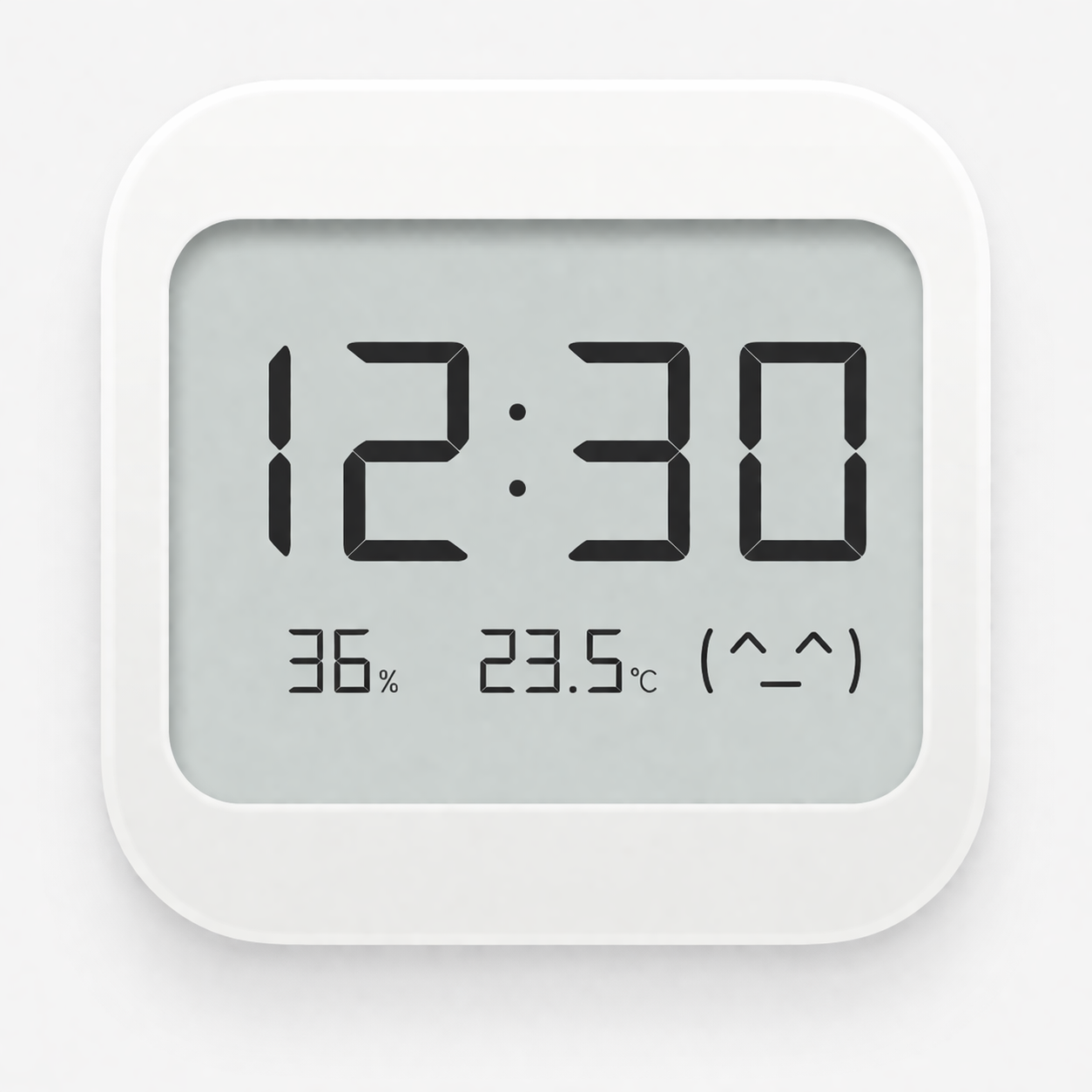
ClockSync is a small utility for Xiaomi LYWSD02 and MJWSD05 bluetooth clocks.
The LYWSD02 clocks have no buttons for setting the time, so the only way to do it is with bluetooth.
That’s where ClockSync comes in.
The MJWSD05 clock does have a button, but still also supports configuration via bluetooth.
Usage
When you launch the app, it starts scanning its surroundings looking for clocks that it can talk to.
For a LYWSD02, you just need to bring it in range. For a MJWSD05, you also need to press the lower button on the right-hand side. You should then see a bluetooth indicator flashing on the device, to show that it’s in bluetooth discovery mode.
When the app finds a device, it tries to connect and shows the information that it has retrieved.
Once you are connected, you can set the time using the “Sync Time” button.
You can also adjust whether the clock shows the temperature in Celsius or Fahrenheit.
Time Zones
Internally these clocks have a notion of the “real” time (UTC time and date), and of a timezone offset.
ClockSync attempts to detect the timezone offset that you are using, and sends it to the clock.
So if you are in a UTC+2 timezone, and your computer is telling you that it’s 10am, ClockSync will send the time to the clock as being 8am UTC and the offset as being +2.
This should generally result in the correct value showing on the clock.
However, a few places in the world have time zones that are part of an hour.
The clock can’t represent this offset natively, but we can fake it by adding some minutes to the UTC time that we send to the clock.
Technically this means that the clock’s internal notion of time is wrong, but pragmatically it means that the right time gets shown, which is really what matters. You can do this using the Fractional Offset popup, which allows you to add 15, 30 or 45 minutes to the clock time.
Multiple Clocks
The app is optimised for the case where you’ve just got one clock in range, which is likely to be the most common one.
As soon as it’s found the first clock it navigates to the details screen for that clock.
It keeps looking in the background though, and builds a list of all the clocks it found.
If it finds more than one, and picked the wrong one to start with, you can hit the button at the top-left of the screen, to view the clock list and navigate to a different one.
Clock Connection
On the LYWSD02, a small indicator appears to show that there is a connection. On the MJWSD05 the bluetooth icon stops flashing and stays solid.
Whilst the app is open and connected to a clock, my suspicion is that clock may use a bit more power.
As a result, it’s probably best to disconnect from it once you’re done.
There is a button in the app to explicitly disconnect from a device, or you can just close the app.
Occasionally I’ve seen the LYWSD02 continue to display the indicator for a while, as if it still thinks that it is connected. In this situation it sometimes won’t connect again if you re-run the app. After a few minutes, the indicator will go away and the clock should revert to its normal mode.